

How To Create Namespace In Salesforce Lightning
Salesforce Lightning Locker Service


What is Lighting Locker Service?
· Enforces powerful security architecture in single page applications built using lighting components.
· Isolates the components belonging to one namespace from the components belonging to other namespaces.
· Promotes lighting best practices by allowing access to only supported API's and prevent the execution of malicious code in a trusted webpage context.
· Lighting locker uses a browser Content Security Policy (CSP) which prevents the webpage against Cross-Site Scripting (XSS), Click-Jacking and other code injections.
Why do we need 'Security' in Lightning?
· For protect i on of the web pages built using lighting components against web security vulnerabilities.
· To make the component have access to only the DOM that was created by our component code.
· Locker Services adds namespaces to our components which prevent the component code from accessing data directly from the components of other namespaces.
Salesforce Content Security Policy (CSP)
Salesforce's Content Security Policy doesn't allow the use of inline JavaScript code and restricts the JavaScript eval() to the global namespace. In other words, the eval() function evaluates the JavaScript code that is represented as a string. Hence this method is now supported inside the locker, in global mode.
Note: Salesforce CSP is not supported by all the browsers, such as IE11. Make sure you're using a CSP compatible browser such as Google Chrome.
Strict Mode Enforcement in JS
Locker Service automatically enforces the ECMAScript (ES5) strict mode in our JS code. If we write a JS code that is not valid in strict mode, we will see unexpected errors. If we are using external JS libraries, we need to ensure that they are also following the strict mode.
Some of the best practices to be followed while writing the code in Lightning Component Controller.js and Helper.js files are listed below:
1. Using a variable/object without declaring is not allowed:

The above statements are invalid and will cause errors. Instead, we need to use the var keyword:
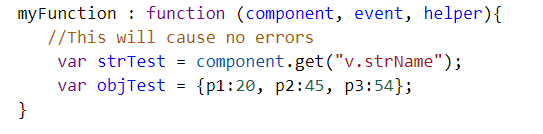
2. Deleting a variable/object/function is not allowed:
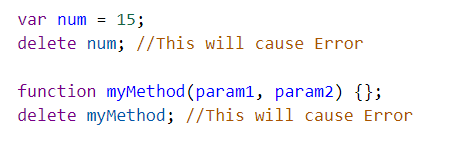
3. Writing to a read-only/get-only properties is not allowed:
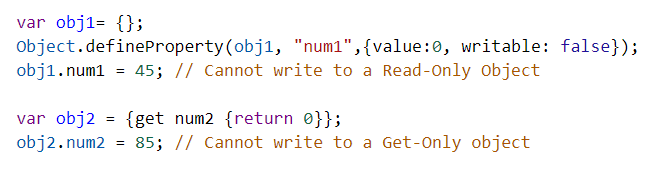
4. The following reserved keywords are not allowed in strict mode:
· implements
· interface
· let
· package
· private
· protected
· public
· static
Understanding the DOM Access
Lighting Locker Service restricts the component code from reaching out to other components directly, which belong to a different namespace.
Let us understand this using a simple example.
Suppose we have the following lightning component:
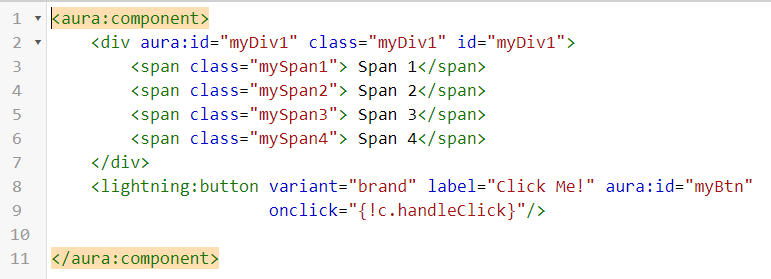
The controller of the above component is as follows:

We then use a custom lighting app to call our component, as shown below:

Hence, upon clicking the button defined in our component, we receive the following error:
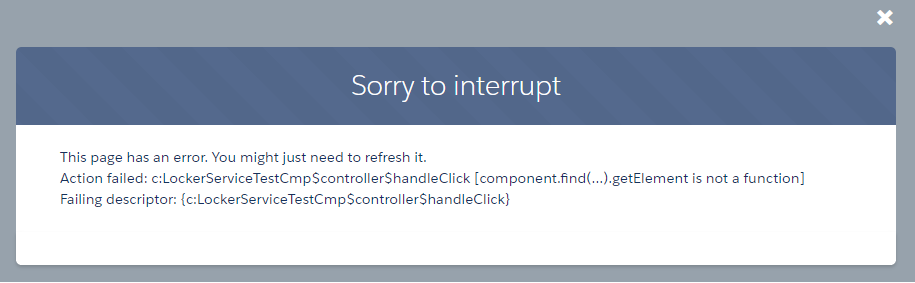
Explanation:
The locker service doesn't allow components to access the DOM element for <lightning:button> because the button is in the 'lightning' namespace whereas our component is in the 'c' namespace. A component can only traverse and access the DOM elements created in the same namespace as itself.
Lightning Locker Service Tools
Locker Service Tools are the tools that help us develop the JS code which is more robust, secure, compatible and efficiently runs with the Locker Service:
1. Lighting Locker API Viewer:
It shows the supported standard DOM API's in the window, document and element object.
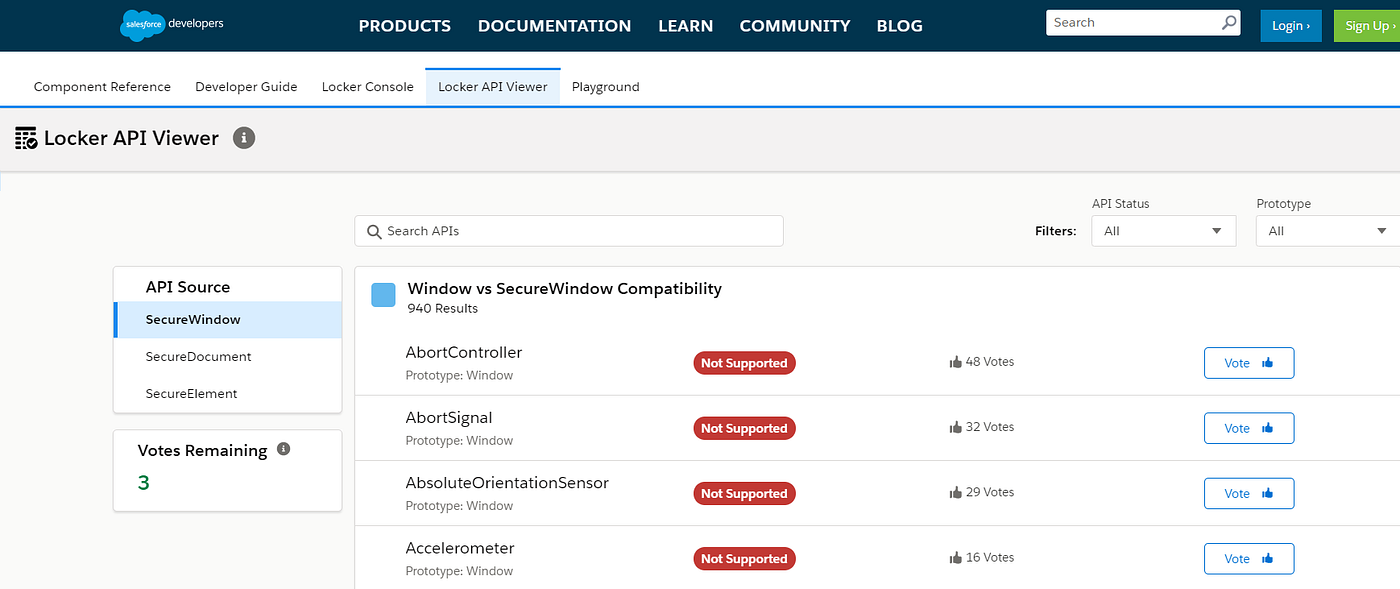
This tool is available in the lighting component library:
https://developer.salesforce.com/docs/component-library/tools/locker-service-viewer
2. Lighting Locker Console Viewer:
This tool allows us to quickly test our JS code's compatibility with Locker Service without creating an app to test our component. However, the complete Aura Bundle or only the component markup cannot be evaluated using this tool.

This tool also provides us with a benchmark option to enable/disable the locker service and check our JS Code's performance. This tool is also accessible via Lightning Component Library:
https://developer.salesforce.com/docs/component-library/tools/locker-service-console
Enable the Locker Service and select the Locker API Version:
In order to enable the Locker Service for a component, choose the Bundle Version to 40.0 or higher and the Locker Service will automatically be enforced. Similarly, if we want to disable this for a lightning component, we can set the API Version to 39.0 or lower but it is not recommended to do so.
By default Locker API version is set to the currently available version. In order to change the Locker Service in your Salesforce Org, follow the steps below:
1. Go to Setup, and Enter Session in the Quick Find Box.
2. Locate the field Use Security Enhancements in API Version in the API Version Section.
3. Select the version and click Save.
Overview of Locker API versions

Resources:
For more information, you can view the official Salesforce documentation:
https://developer.salesforce.com/docs/atlas.en-us.lightning.meta/lightning/security_code.htm
How To Create Namespace In Salesforce Lightning
Source: https://medium.com/@mad15x/salesforce-lightning-locker-service-95da3f9b6aa9
Posted by: anthonyeposis.blogspot.com
0 Response to "How To Create Namespace In Salesforce Lightning"
Post a Comment